How to Remove Unwanted Programs From Your Computer
Keeping your digital workspace clean is essential for maintaining performance and security, which is why learning the most effective ways of removing unwanted programs from your computer is a vital skill for any user. Bloated software can slow down your system, consume precious storage space, and occasionally introduce security vulnerabilities that compromise your data.
By systematically identifying and clearing out applications you no longer use, you reclaim system resources and ensure your operating system remains responsive. This process is straightforward once you understand the standard tools provided by Windows, and it empowers you to take full control over your digital environment while keeping your device running at its peak efficiency.
Using the Windows Settings Menu
The most modern and accessible way to manage your software is through the Windows Settings menu. This interface acts as the primary hub for administrative tasks, including the removal of applications that are no longer needed.
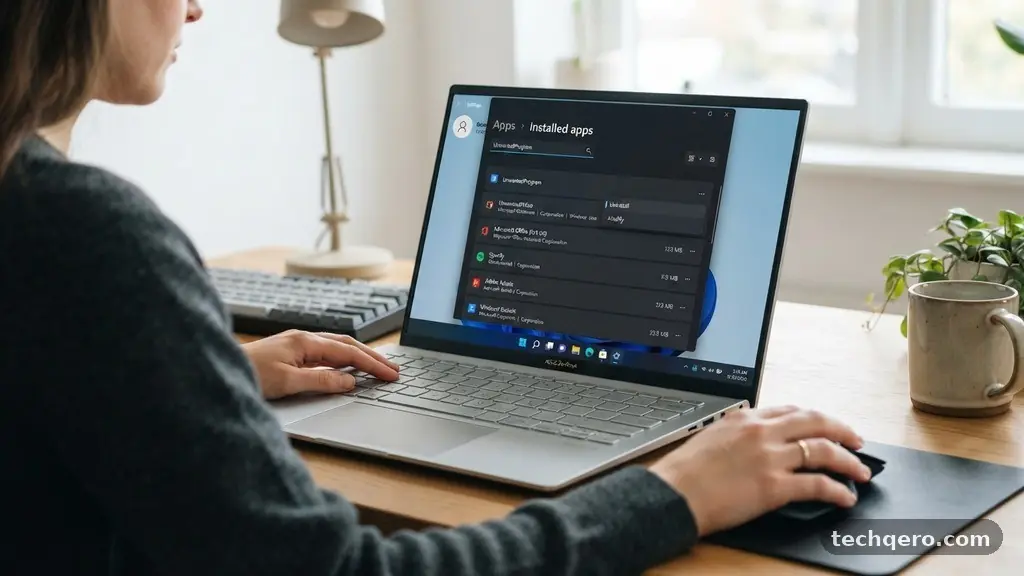
To begin, click the Start button and select the gear icon to open the Settings window. From there, navigate to the Apps section, where you will find an item labeled Installed Apps or Apps & Features depending on your specific version of Windows.
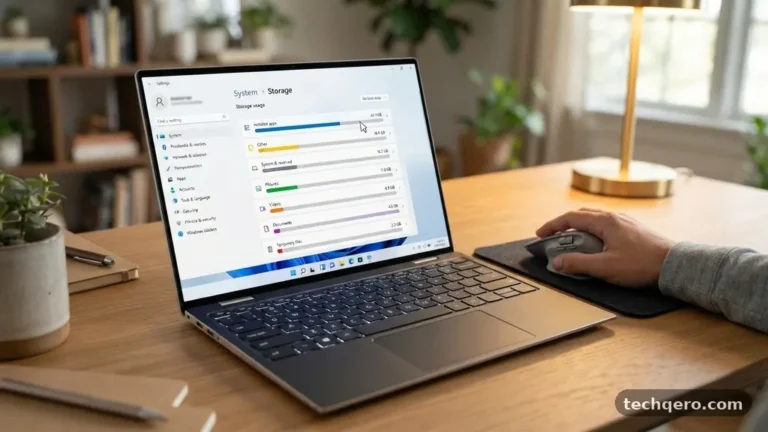
Once you are in this list, you can see every piece of software currently installed on your machine. You might notice that some programs take up significantly more space than others, which is often visible in the storage information displayed next to the app name.
If you identify a program you want to remove, click the three-dot menu icon next to the entry. This reveals the option to select uninstall, which triggers the automated removal process for that specific package.
Be aware that some applications require you to confirm the action in a secondary window. Always read the prompts carefully, as some installers might ask if you wish to keep your user data or configuration settings.
If you are trying to completely wipe a program from your system to resolve a performance issue, checking the box to clear user data is usually the better choice. Following these steps ensures a clean removal without leaving behind fragmented files that could clutter your drive.
Navigating the Control Panel
While the Settings menu is the modern standard, the classic Control Panel remains a powerful tool for managing legacy software. Many older programs are still optimized for this interface, providing a more detailed view of the installation date and the size of the software on your hard drive.
To access this, type “Control Panel” into the Windows search bar and press Enter. Once the window opens, look for the Programs category and click on Uninstall a program.
This view provides a list of every installed application in a table format that is easy to sort by name, publisher, or date. Clicking on the column headers allows you to reorder the list, which is particularly helpful if you are trying to find programs you installed recently that might be causing system instability. Once you locate the target application, you can either click it once and select the Uninstall button at the top of the window or right-click the name to trigger the removal.
This method often invokes the original uninstaller provided by the software developer. Because these tools are built specifically for that program, they are sometimes more thorough than the generic Windows uninstaller.
If you encounter a program that refuses to close or has a corrupted installation, this classic interface is often more reliable. It is a time-tested approach that remains highly effective for removing unwanted programs from your computer quickly.
Managing System Resources and Storage
Understanding the impact of software on your machine is critical for long-term maintenance. Every program you install occupies space on your storage drive and consumes memory when running in the background.
Over time, these background processes can add up, leading to a noticeable decrease in system responsiveness. By regularly auditing your installed software, you ensure that your hardware is dedicated only to the tasks you actually perform.
When you notice your disk space shrinking, it is often due to large media suites, games, or temporary files associated with unused apps. You can prioritize which programs to remove by checking their file size in the Apps section of your settings.
If you have an application that is several gigabytes in size but hasn’t been opened in months, it is a prime candidate for removal. This simple audit can free up massive amounts of space, potentially improving read/write speeds on your primary drive.
It is also important to consider the impact of startup items. Many programs are designed to launch automatically as soon as you log in, which slows down the boot process.
You can check these by opening the Task Manager and looking at the Startup tab. If you see an app that you do not need, you can disable it, or if you no longer use the software at all, you should proceed with a full uninstallation to stop the background activity entirely.
Comparing Removal Methods
Different methods for managing your software offer varying levels of control and thoroughness. Choosing the right approach depends on whether you are dealing with a standard application or a stubborn piece of software that leaves behind registry keys and temporary folders. The following table illustrates the differences between the primary methods available to Windows users.
| Method | Best For | Complexity | Thoroughness |
|---|---|---|---|
| Settings Menu | Modern Windows apps | Low | Moderate |
| Control Panel | Legacy/Desktop software | Low | High |
| Third-Party Tools | Stubborn or corrupt files | Medium | Very High |
Each of these approaches has a place in your maintenance routine. For most users, the Settings menu is sufficient for day-to-day cleaning.
However, if you find that a program keeps appearing in your list or that its files persist after you uninstall, you may need to look toward specialized utilities. These tools are designed to scan your registry and system folders for orphaned files that the standard Windows uninstaller might overlook.
Dealing with Stubborn Applications
Occasionally, you will encounter a program that simply refuses to go away. This often happens if the uninstaller is corrupted or if the application is currently running in the background, locking the necessary files.
If you find yourself in this situation, the first step is to open the Task Manager by pressing Ctrl + Shift + Esc. Look for any processes associated with the software, select them, and choose End Task to force them to close.
Once the background processes are terminated, try the uninstallation process again through the Control Panel. If that fails, you might need to use the program’s own dedicated removal tool, which is sometimes available on the developer’s website.
Many security software companies and major creative suites provide standalone cleanup utilities specifically for this purpose. These utilities are often more effective at removing every trace of the software than the built-in Windows features.
If you still cannot remove the software, booting your computer into Safe Mode is a highly effective strategy. Safe Mode loads only the most essential drivers and services, which prevents most third-party programs from running.
Once in this mode, you can often delete files or run uninstallers that were previously blocked by system locks. For more information on safely managing your system environment, you can visit the official Microsoft support documentation for additional guidance.
Using Third-Party Uninstallation Tools
When manual methods are not enough, third-party uninstaller software can be a game-changer. These programs are specifically engineered to monitor installations from the moment they occur, recording every file and registry entry created. When you decide to remove the program, the tool reverses every change, ensuring that no stray files or configuration settings are left behind on your system.
Most of these tools offer a “forced” removal mode for programs that don’t have a functional uninstaller. This involves the tool scanning your entire hard drive for folders and registry keys associated with the software name.
It then presents you with a list of these items, allowing you to delete them permanently. This is a very powerful feature for cleaning up after poorly coded software that doesn’t follow standard installation protocols.
While these tools are highly effective, you should exercise caution. Always stick to reputable software and avoid free utilities that come bundled with their own advertisements.
A trustworthy tool will provide a clear preview of what it intends to delete before it actually performs the action. By using a tool with a high rating and a transparent privacy policy, you can safely remove unwanted programs from your computer without risking your system’s stability.
Best Practices for Software Maintenance
Preventing the accumulation of unwanted software is just as important as removing it. The best way to keep your machine fast is to be mindful of what you install in the first place.
Before clicking “Download” on a new app, consider whether it serves a genuine purpose or if you already have a tool that performs the same task. Many users end up with three or four different programs for the same job, which is a major contributor to system bloat.
Create a schedule for yourself to review your installed programs. Doing this once every three months is usually enough to catch any software you no longer use.
During this audit, look for programs that were installed as “bundled” software—these are often included with other downloads and can be identified by their unfamiliar names. If you don’t recognize an application and it isn’t a core system component, it is likely a candidate for removal.
Finally, always keep your operating system and your remaining software updated. Developers frequently release patches that improve the efficiency of their programs, reducing their footprint on your system.
If you aren’t sure if an app is necessary, search for its name online to see what other users say about it. Being proactive about your software library will save you time and keep your computer running smoothly for years to come.
Frequently Asked Questions
Is deleting a folder the same as uninstalling a program?
No, simply deleting a folder is not the same as uninstalling. When you use the official uninstall process, Windows removes registry entries and background services that are tied to the program. If you just delete the folder, these background services will remain, often causing errors or slowing down your system.
What should I do if a program doesn’t appear in my list?
If a program is missing from the list, it might be a portable application that doesn’t require installation, or it could be a background service. Try looking for an “uninstall.exe” file within the program’s main installation folder. If that fails, you can manually delete the folder after ensuring all associated processes are closed in the Task Manager.
Should I remove programs that I don’t recognize?
You should be very careful before removing unknown software. Some programs are essential parts of your hardware drivers, such as audio controllers or graphics software. Before removing anything you don’t recognize, search for the name of the file or the publisher online to see if it is a known system component.
Can I uninstall pre-installed apps from the manufacturer?
Yes, most pre-installed apps, often called “bloatware,” can be removed using the same methods as any other software. If an app doesn’t show an uninstall option, it may be a core Windows feature that cannot be removed. Always prioritize removing third-party apps that you did not explicitly choose to install.
How often should I clean up my software?
A quarterly review is a great habit to maintain. Checking your list of installed apps every three months allows you to identify software that you haven’t touched since the last time you cleaned your machine. This prevents clutter from building up over the long term.
Conclusion
Taking the time to manage your software library is an effective way to keep your machine running at its best. By utilizing the built-in Windows tools or more advanced third-party utilities, you can easily clear out the digital clutter that accumulates over time. Remember to be cautious when identifying unknown files and always prioritize keeping your system lean and efficient.
Removing unwanted programs from your computer is a simple yet powerful way to reclaim your storage and ensure that your hardware remains responsive for all your daily tasks. Start your first audit today and enjoy a faster, more organized digital workspace.