How to Make Your Windows PC Faster Without Upgrading Hardware
Successfully making your Windows PC faster without upgrading hardware is entirely possible by refining how your operating system manages its resources. Many users assume that sluggish performance requires a new drive or more RAM, but software bloat and inefficient settings are often the true culprits. By systematically optimizing your background processes, cleaning out digital clutter, and adjusting system configurations, you can achieve significant speed improvements.
This approach saves you money while extending the lifespan of your current machine. In this article, we will explore the specific, actionable steps you can take today to restore your computer‘s responsiveness and efficiency without spending a dime on new components.
Managing Startup Applications
The most common reason for a slow boot time and sluggish performance is an overloaded startup list. Every time you turn on your computer, Windows automatically launches various applications that you may not need immediately. These programs consume CPU cycles and memory before you even open your first browser tab.
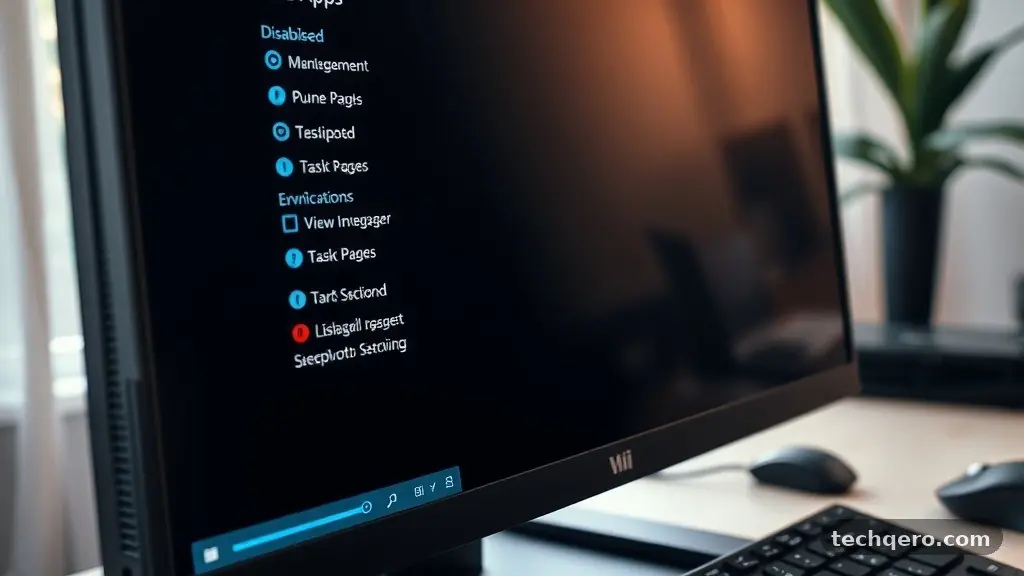
You can manage these programs through the Task Manager. Press Ctrl + Shift + Esc to open it, then navigate to the “Startup” tab.
You will see a list of every application configured to launch upon login. Look for the “Status” column to identify which ones are currently enabled.
Right-click any application you do not need to start automatically and select “Disable.” Be careful not to disable critical system drivers or security software, but feel free to turn off messengers, update checkers, or cloud sync tools. Reducing this list can often cut your startup time by several seconds or even minutes on older machines.
Optimizing Background Processes
Background processes are the silent resource hogs that drain your system’s performance. Even if you aren’t actively using an application, it might be running services in the background to check for updates or collect data. Windows 10 and 11 offer tools to restrict this behavior.
Go to your system settings and look for the “Privacy & Security” section. From there, navigate to “Background apps.” If you are using an older version of Windows, you can toggle off individual apps or disable background activity for all non-essential software.
Consider the following table to understand how different types of applications impact your system resources:
| Application Type | Resource Impact | Recommendation |
|---|---|---|
| Web Browsers | High (RAM/CPU) | Limit open tabs |
| Cloud Storage | Medium (Disk/Network) | Pause when not in use |
| System Utilities | Low (CPU) | Keep enabled |
| Third-party Bloatware | High (CPU/RAM) | Uninstall entirely |
Cleaning Temporary Files
Over time, your computer accumulates gigabytes of junk data that serve no purpose. These include temporary installation files, cached web data, and error logs. These files clutter your drive and can interfere with the rapid access speed required for a healthy system.
Use the built-in Disk Cleanup tool to safely remove these files. Search for “Disk Cleanup” in the Start menu and select your primary system drive. The utility will scan for files you can safely delete, such as “Temporary Internet Files” and “Windows Update Cleanup.”
Click “Clean up system files” to perform a deeper scan. You will often find large amounts of data in the “Previous Windows installations” folder if you recently performed a major system update. Removing these files can free up significant space, which is critical if your storage drive is nearing its total capacity.
Adjusting Visual Effects
Windows includes various animations, shadows, and transparency effects designed to make the interface look modern. While these features are aesthetically pleasing, they require constant GPU and CPU attention. On older hardware, disabling these effects can make the interface feel much snappier.
Open the Control Panel and search for “Adjust the appearance and performance of Windows.” In the dialog box that appears, you will see a list of visual features. Selecting “Adjust for best performance” will turn them all off instantly.
Alternatively, you can manually select which features to keep. For example, keeping “Smooth edges of screen fonts” enabled ensures that text remains readable while disabling “Animate windows when minimizing and maximizing” removes the slight delay caused by visual transitions. This is a subtle change that makes a noticeable difference in navigation speed.
Managing Power Plans
Windows is designed to balance performance with power consumption, especially on laptops. The default “Balanced” mode often throttles your processor to save energy, which can lead to perceptible lag during demanding tasks. Changing your power settings to “High Performance” can unlock more processing power.
Navigate to “Power & sleep settings” and click on “Additional power settings.” You may need to click the dropdown arrow to “Show additional plans” to see the “High performance” option. Selecting this mode forces your CPU to stay at a higher clock speed more consistently.
Be aware that this setting will drain laptop batteries faster. If you are plugged into a wall outlet, however, there is no disadvantage to keeping this setting active. This simple tweak is one of the most effective ways of making your Windows PC faster without upgrading hardware.
Maintaining System Updates
Keeping your operating system up to date is vital for both security and performance. Microsoft frequently releases patches that address memory leaks and inefficient code within the Windows environment. These updates are not just about adding new features; they are often about optimizing how the system interacts with hardware.
Visit the Windows Update section in your settings to ensure you are running the latest version. If you have been ignoring update prompts for weeks, your system may be struggling with known bugs that have already been resolved. For more information on how Microsoft manages these updates, you can refer to the official documentation on Windows as a Service.
Restart your computer after updates are installed. Many people leave their PCs in “Sleep” or “Hibernate” mode for weeks at a time, which can lead to fragmented system memory. A fresh restart clears out the RAM and allows the system to reload with all necessary patches applied correctly.
Removing Unnecessary Software
Many computers come pre-installed with “bloatware”—software that you never asked for and rarely use. These programs often come bundled with your PC manufacturer’s branding or third-party trials. They frequently include services that run in the background, consuming resources that your active programs need.
Go to “Apps & features” in your settings to review a list of everything installed on your machine. Be honest with yourself about what you actually use. If you see software you haven’t opened in months, uninstall it.
Common offenders include trial versions of antivirus software, manufacturer-specific support tools, and bundled games. If you are unsure what a program does, perform a quick web search for its name. If it is not essential for the system to function, removing it will free up both drive space and processing overhead.
Managing Storage Health
A drive that is nearly full will almost always perform worse than one with plenty of free space. When your storage reaches its limit, the operating system struggles to find contiguous blocks of data, leading to increased latency. Aim to keep at least 15% of your drive capacity free at all times.
If you are using a mechanical Hard Disk Drive (HDD), fragmentation is a real issue. Windows will automatically defragment your drives on a schedule, but you can trigger this manually by searching for “Defragment and Optimize Drives.” Note that if you are using a Solid State Drive (SSD), you should use the “Optimize” function, which uses the TRIM command rather than traditional defragmentation.
Regularly audit your personal files as well. Large video files, high-resolution photos, and unorganized downloads take up massive amounts of space. Moving these files to an external cloud service or an external drive can provide the breathing room your operating system needs to function efficiently.
Frequently Asked Questions
Does disabling visual effects affect my computer’s security?
No, disabling visual effects like window animations or shadows has zero impact on your security. These are purely aesthetic settings that control how the interface is rendered on your screen.
Is it safe to delete all files found in Disk Cleanup?
Generally, yes. The files identified by the Windows Disk Cleanup tool are temporary or redundant files that the system no longer needs. Always review the list to ensure you aren’t deleting something like your “Downloads” folder if you have important files stored there.
How often should I restart my computer?
You should aim to perform a full restart at least once every few days. While Sleep mode is convenient, a full reboot clears the system RAM and stops any runaway processes that might be eating up your CPU resources.
Will High Performance mode damage my computer?
High Performance mode is a standard setting provided by Windows and will not damage your hardware. It simply tells the processor to stay at a higher frequency for longer, which increases power consumption and heat but does not exceed the safe operating limits of your components.
Does uninstalling bloatware actually improve speed?
Yes, removing bloatware is highly effective because it often removes background services that start automatically. These services run in the background, consuming memory and CPU cycles that could be better used by the applications you actually intend to run.
Conclusion
Making your Windows PC faster without upgrading hardware is a rewarding process that relies on consistent maintenance and smart configuration. By disabling unnecessary startup apps, clearing out digital clutter, and optimizing your power settings, you can breathe new life into an aging machine. Remember that the goal is to reduce the background noise so your processor can focus on the tasks you care about most.
If you follow these steps, you will likely notice a smoother experience during your daily work and leisure. Start with the most impactful changes, such as managing your startup list, and observe how your system responds. Your computer is a tool, and with a little bit of care, it can remain a reliable, high-performing companion for years to come.