How to Check Which Apps Are Using the Most Storage
When your device starts running slow or you receive that dreaded “storage full” notification, the culprit is often a handful of bloated applications. Learning the simple process of checking which apps are using the most storage allows you to reclaim your digital space without guessing what to delete. Whether you are working on a laptop, a tablet, or a smartphone, the operating system provides built-in tools to visualize your data consumption.
By identifying these heavy hitters, you can strategically remove or offload files that you no longer need. This proactive approach to device maintenance ensures that your system continues to run smoothly and efficiently for all your daily tasks.
Locating Storage Statistics on Windows
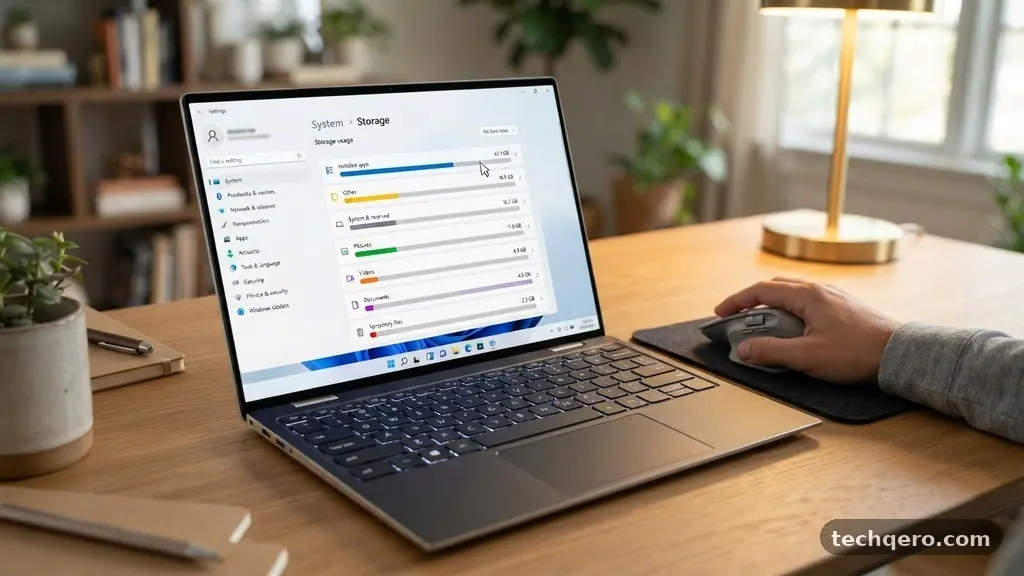
If you are using a Windows computer, the operating system provides a highly detailed breakdown of your disk usage. To get started, navigate to the Start menu and select the gear icon to open your system Settings.
From there, click on the “System” tab and then select “Storage” from the menu on the left side of the screen. This dashboard gives you an immediate visual representation of how your drive is being utilized across different categories like system files, documents, and installed apps.
Once you are in the Storage menu, click on the link labeled “Installed apps” to see a comprehensive list of everything currently on your machine. Windows defaults to sorting these by size, which makes it incredibly easy to spot the software taking up the most space. You will see the name of the program followed by the amount of disk space it occupies in gigabytes or megabytes.
If you notice a game or a creative suite you haven’t touched in months, this is the perfect time to uninstall it. Always check the official Microsoft support resources for specific guidance on managing complex system components.
Managing App Storage on Android Devices
Android devices handle storage management through the dedicated Settings app as well. Open your phone’s settings and look for a section labeled “Storage” or “Device Care,” depending on your specific manufacturer’s interface.
When you tap on “Apps” or “App Management,” the system will populate a list of every application installed on your device. Much like the desktop experience, you can tap on the “Sort by size” option to bring the largest apps to the top of your screen.
This view is particularly useful because it reveals not just the size of the app itself, but also the “cache” and “data” associated with it. Sometimes an app might only be 100MB, but its cached data could be consuming several gigabytes of space.
If you find an app that is hoarding space, tapping on it will usually give you the option to “Clear Cache” or “Clear Data.” Be careful with clearing data, as this often resets your login credentials and preferences for that specific service.
Analyzing Storage Usage on iOS
Apple provides a very intuitive interface for checking which apps are using the most storage on an iPhone or iPad. Navigate to your device Settings and tap on “General,” then select “iPhone Storage” or “iPad Storage.”
You will see a colorful bar graph at the top that shows how much space is used by media, system software, and applications. Below this graph, the device automatically lists your apps in descending order based on the space they occupy.
One of the best features here is the “Offload Unused Apps” recommendation, which allows the system to delete the app binary while keeping your personal data intact. If you decide to reinstall the app later, your settings and saved information will be right where you left them.
This is a life-saver for users with limited storage capacity who want to keep their devices clean without losing important progress in games or utility apps. You can also tap on individual apps to see exactly how much space is dedicated to the app itself versus the documents it has generated.
Differentiating Between App Size and Data
A common point of confusion when checking which apps are using the most storage is the difference between the base installation file and the content stored inside it. Many modern applications are relatively small when you first download them from an app store.
However, they grow significantly as you use them because they save offline maps, high-resolution photos, or streaming media files. This “bloat” is often the real reason your drive is filling up, rather than the app itself.
Understanding Cache and Temporary Files
Cache files are temporary data chunks that your device stores to make apps load faster the next time you open them. While this is helpful for performance, these files can accumulate over months of usage, eventually reaching sizes that rival actual programs. If you are desperate for space, clearing the cache is usually the safest first step because it does not delete your core account information or personal documents.
Managing Persistent User Data
User data includes things like downloaded movies, saved game files, and offline documents that you explicitly chose to store on your device. Unlike cache files, deleting user data is often permanent and cannot be recovered unless you have a backup in the cloud. Always verify what kind of data you are removing before you confirm the deletion process in your settings menu.
Comparing Typical Storage Consumption
To help you understand what constitutes a “large” app, it helps to look at typical usage patterns for common software categories. While specific numbers vary based on your personal usage, the table below provides a general benchmark for how much space different types of applications consume on a standard smartphone or computer.
| App Category | Typical Storage Range | Primary Growth Factor |
|---|---|---|
| Basic Messaging | 50MB – 300MB | Saved media and attachments |
| Social Media Apps | 200MB – 2GB | Cached video and image feeds |
| Graphic Design Tools | 1GB – 5GB | Asset libraries and project files |
| High-End Mobile Games | 2GB – 10GB+ | High-resolution textures and maps |
| Productivity Suites | 500MB – 3GB | Local document caches |
Cleaning Up Junk Files and Bloatware
Once you have identified the primary space-wasters, you might realize that some of them are “bloatware”—pre-installed apps that you never use but cannot easily delete. On Windows, you can often remove these through the “Apps & Features” menu.
If an app is a system essential, you might not be able to uninstall it, but you can sometimes disable it. Disabling an app prevents it from running in the background, which stops it from accumulating new junk files over time.
For mobile devices, you can group unnecessary apps into a specific folder to keep them out of sight, or move them to an SD card if your phone supports external storage. If your device is truly clogged, consider using a cloud storage service to offload your photos and videos. This is one of the most effective ways to free up physical space without deleting the apps you actually rely on for your daily workflow.
Best Practices for Future Storage Management
Checking which apps are using the most storage shouldn’t be a monthly chore; it should be part of a healthy digital hygiene routine. Set a reminder to perform a quick audit of your installed apps every three to six months.
During this audit, look for apps that you haven’t opened in over 30 days and evaluate whether they are worth keeping. You can also adjust your app settings to prevent them from automatically downloading high-quality media that you don’t need to save locally.
* Enable automatic offloading for unused apps if your operating system supports it.
* Limit the number of offline movies or songs you keep on your device.
* Regularly clear the cache of social media apps that consume video data.
* Move large project files or photos to a cloud drive or external hard disk.
* Check for “system updates” that might be waiting to install, as these often clear out temporary files.
Frequently Asked Questions
Why does my storage fill up even when I haven’t installed new apps?
Storage space is often consumed by background processes like OS updates, temporary cache files, and data generated by apps you already have. Social media platforms, in particular, tend to cache large amounts of video content locally to ensure smooth playback, which can quietly eat up gigabytes of space over time.
Is it safe to delete the “Other” or “System” category on my phone?
You generally cannot manually delete the “System” category because it contains the core files required for your device to function. However, the “Other” category often contains remnants of deleted apps, corrupted files, or system logs. You can often clear this by performing a backup and then resetting your device, or by simply restarting your phone to clear temporary logs.
Will uninstalling an app delete my account information?
Uninstalling an application removes the program files from your device, but it does not delete your account on the service’s servers. If you log back into the app later, your data will usually sync back to your phone as long as you use the same credentials. Always ensure your data is synced to the cloud before deleting sensitive applications.
How do I know if an app is safe to remove?
If the app was not pre-installed by the manufacturer or your mobile carrier, it is almost certainly safe to remove. If you are unsure about a specific system app, perform a quick web search for the app name to see if it is a critical component of the operating system. When in doubt, leave it alone to avoid potential stability issues.
Conclusion
Taking control of your digital environment starts with understanding exactly where your data is hiding. By regularly checking which apps are using the most storage, you can stop the cycle of constant notifications and performance lags. Use the built-in tools within your Windows, Android, or iOS settings to identify, evaluate, and purge the applications that are no longer serving you.
Small, consistent actions like clearing cache files and offloading unused software will keep your device running as fast as the day you bought it. Start your audit today and enjoy the extra breathing room on your device.