Best Free Tools for Managing Files on Windows
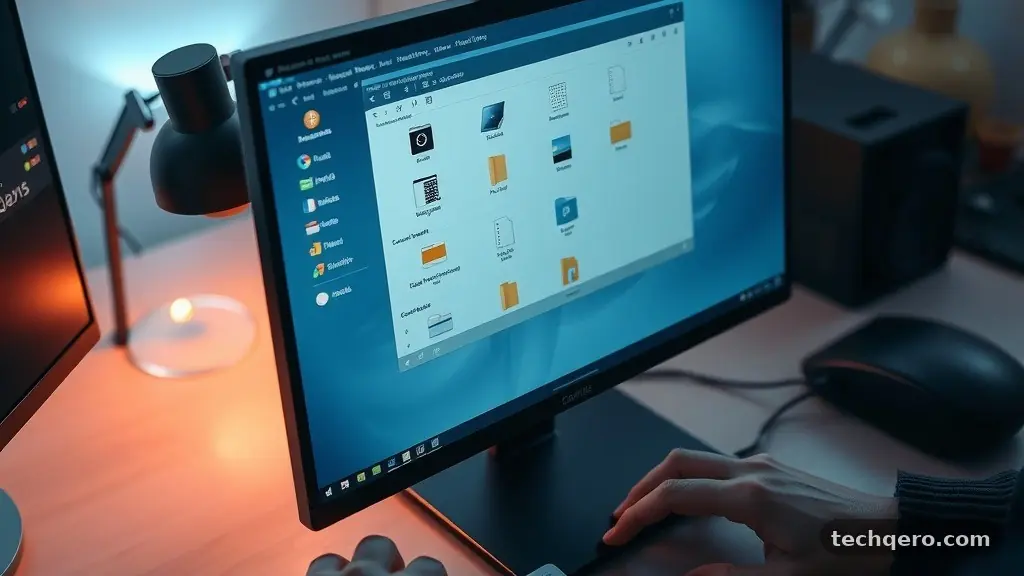
Finding the best Free Tools for Managing Files on Windows can transform your digital workspace from a cluttered mess into a streamlined system. While the native File Explorer is sufficient for basic tasks, power users often find it lacking in speed, customization, and advanced organizational capabilities.
By upgrading to third-party software, you gain access to dual-pane interfaces, batch renaming, and advanced search filters that save hours of manual work. This article explores the most reliable, high-performance options available today to help you take full control of your data without spending a cent.
Top Recommendations for File Management
When looking for the best Free Tools for Managing Files on Windows, users often prioritize speed and layout. A high-quality file manager should offer more than just a list of folders; it needs to provide a logical, efficient way to move and organize data.
Most power users lean toward dual-pane interfaces, which allow for quick drag-and-drop operations between two distinct locations. This layout is significantly faster than opening multiple windows and manually resizing them to fit your screen.
One standout option is OneCommander, which offers a modern, tabbed interface that feels right at home on Windows 11. It supports complex tasks like advanced filtering and directory tree visualization that the standard file explorer simply cannot handle.
Another excellent choice is Files, an open-source project that focuses on aesthetic design while maintaining high functionality. Both tools prove that you don’t need a paid subscription to achieve professional-grade file organization on your PC.
Comparing Popular File Management Software
Selecting the right tool often comes down to specific feature requirements and personal preference. Some users prefer a minimalist design, while others want every possible button and toggle visible on their dashboard. The following table compares common attributes of top-tier free file managers to help you decide which one fits your workflow.
| Software Name | Interface Style | Best For | Open Source |
|---|---|---|---|
| OneCommander | Dual-Pane | Power Users | No |
| Files | Modern/Tabbed | General Productivity | Yes |
| FreeCommander | Classic/Dual-Pane | Legacy Workflow | No |
| Explorer++ | Portable/Lightweight | Low-Resource Systems | Yes |
Why Upgrade from the Built-in Explorer
The Windows File Explorer has seen improvements over the years, but it remains a general-purpose tool. It lacks the deep customization required for managing thousands of files across different network drives or cloud storage services.
When you move to a specialized file manager, you gain the ability to create complex keyboard shortcuts for routine tasks. For example, you can set up automated scripts to move files based on their extension or creation date, a feature absent in the standard version.
These tools also provide a better preview system for media files. Instead of relying on slow thumbnails, many third-party managers allow you to view images, videos, and documents directly within the pane.
This saves you from having to open external applications just to check the contents of a specific file. By centralizing your workflow, you reduce the number of clicks required to complete a project, which is essential for maintaining focus during a busy workday.
Key Features to Look For
When evaluating the best Free Tools for Managing Files on Windows, prioritize software that supports batch operations. Batch renaming is a vital feature for anyone who works with high-resolution photos or large datasets.
Being able to change the naming convention of a hundred files in a single click is a massive time-saver. Look for tools that support regex (regular expressions) for even more granular control over your file names.
Another critical feature is robust support for network drives and cloud storage integration. If you frequently access files across a local network or via services like OneDrive or Google Drive, your file manager should handle these connections natively.
It should treat remote locations as if they were local folders, allowing for seamless transfers without latency issues. Always check if the software supports tabbed browsing, as this is the most effective way to keep multiple active projects organized in one window.
Portable Tools for Flexibility
Portability is a major advantage when choosing file management software. Many of the best tools on the market offer a portable version that does not require a traditional installation process.
This means you can keep your favorite file manager on a USB flash drive and use it on any computer you happen to be working on. You won’t leave behind registry entries or temporary files, keeping the host system clean.
This flexibility is particularly useful for IT professionals or students who move between different workstations. You can maintain your custom configuration, color schemes, and folder shortcuts regardless of the environment.
If you want to learn more about the technical specifications of how Windows handles file systems, you can visit the official Microsoft documentation on file systems. Understanding these basics helps you troubleshoot issues if a file manager behaves unexpectedly during heavy usage.
Managing Large File Collections
Organizing thousands of files requires a systematic approach that goes beyond manual dragging and dropping. Advanced file managers often include features like “flat view,” which allows you to see all files in a folder and its subfolders in a single list.
This is incredibly helpful when you are trying to find duplicates or sort files by size across an entire directory tree. You can quickly identify large files that are consuming unnecessary disk space.
Many of these tools also offer integrated search engines that are significantly faster than the default Windows search. They index files in real-time or allow for instant filtering by attributes like date, size, or file type.
If you are a creative professional, you will appreciate the metadata support, which allows you to view EXIF data or document properties without leaving the interface. Using these features, you can keep your digital library in perfect order.
Security and Commercial Use
When downloading free software, it is vital to verify the license under which it is distributed. Some tools are free for personal use but require a license for commercial or business environments.
Always check the official website of the software to ensure you are compliant with their terms of service. Generally, open-source projects are the safest bet for both personal and professional settings as they are transparent about their development.
Security should also be a priority when selecting a file manager. Avoid tools that require unnecessary permissions or those that lack a clear update path.
A trustworthy file manager will receive regular security updates to patch vulnerabilities, especially those that interact with network drives. By sticking to well-known, reputable projects, you ensure that your data remains safe while you enjoy the productivity benefits of a better interface.
Maximizing Workflow Efficiency
Efficiency in file management is not just about the tool; it is about how you configure it. Start by mapping your most frequently used folders to keyboard shortcuts.
Most of the best Free Tools for Managing Files on Windows allow you to create custom hotkeys for navigation, file deletion, or opening command prompts in specific directories. This eliminates the need to reach for your mouse for every single operation.
You should also take advantage of the layout customization options. If you rarely use certain features like the ribbon menu, hide them to clear up screen space.
Adjust the font size and color coding to make it easier to distinguish between different file types at a glance. By spending twenty minutes setting up your software environment, you can save dozens of hours over the course of a year.
Frequently Asked Questions
Is it safe to use third-party file managers on Windows?
Yes, provided you download them from official developer websites or trusted repositories like GitHub. Always scan executable files with reputable antivirus software before running them for the first time.
Can I replace the default Windows File Explorer?
While you cannot completely uninstall the default File Explorer, you can set your preferred third-party manager as the default application for opening folders. This ensures that every time you click a shortcut, your preferred tool launches instead.
Do these free tools support cloud storage?
Most modern file managers treat cloud storage folders, such as those for Dropbox or OneDrive, just like any other local directory. This means you can manage your cloud-synced files with the same speed and features as your local hard drive.
Which file manager is best for beginners?
If you are new to third-party managers, start with something like Files. It offers a clean, modern interface that is very similar to the native Windows experience but adds helpful features like tabs and better customization without being overwhelming.
What if I need to move files across a network?
Advanced managers like OneCommander and FreeCommander are built to handle network paths effectively. They often provide persistent connections and better error handling compared to the native Windows interface, making them ideal for managing NAS devices or shared office drives.
Final Thoughts on File Organization
Choosing the right software to manage your data is a simple way to improve your daily computing experience. By moving away from the default interface and utilizing the best Free Tools for Managing Files on Windows, you regain control over your digital environment. Whether you choose a dual-pane manager for heavy-duty sorting or a modern, tabbed explorer for day-to-day tasks, the result is a faster and more intuitive workflow.
Take the time to test one or two options from this list to see which one aligns with your specific needs. You will likely find that the added features, such as batch renaming and advanced keyboard navigation, make your time at the computer significantly more productive. Start simplifying your file management today and enjoy a cleaner, more efficient workspace.