How to Fix Bluetooth Problems on a Windows PC
Dealing with wireless connectivity can be frustrating, especially when you are in the middle of a project or trying to relax. If you are currently struggling with fixing Bluetooth problems on a Windows PC, you are certainly not alone, as these software-to-hardware handshakes often fail due to simple glitches.
By following a few systematic steps, you can usually restore your connection without needing to replace any hardware. This article breaks down the most effective methods to get your peripherals talking to your computer again, ensuring you can return to your work or entertainment with minimal downtime.
Identifying the Root Cause of Connection Failure
Before you dive into complex technical adjustments, you need to determine where the communication breakdown is actually occurring. Start by checking if your Bluetooth device is still charged and powered on, as a dead battery is a common culprit.
If the device has power, verify that it isn’t currently connected to another piece of hardware, such as a smartphone or tablet in your pocket. Modern peripherals often prioritize the last device they were linked to, which can lock out your computer.
Next, confirm that the Bluetooth radio on your Windows machine is actually toggled on. You can do this by navigating to the Start menu, selecting Settings, and then clicking on Bluetooth & devices.
If the switch is set to off, flip it back to the on position and observe if your computer starts scanning for nearby signals. Sometimes, a simple toggle is all it takes to reset the internal controller and re-establish a link.
Using the Windows Troubleshooter
Windows includes a built-in diagnostic tool designed specifically for identifying and resolving connectivity hiccups. To access this, go to Settings, select System, and then click on Troubleshoot.
From there, choose Other troubleshooters and look for the Bluetooth option. Running this tool will prompt the system to scan for common errors, such as driver conflicts or service interruptions, and attempt an automatic repair.
While the troubleshooter isn’t a guaranteed fix for every scenario, it is a highly efficient way to rule out basic software bugs. It often detects issues with the Bluetooth Support Service, which is a background task required for your system to communicate with wireless hardware.
If the tool reports that it has made changes, restart your computer immediately to ensure the new settings take effect. This small step often resolves lingering issues that appear after a major system update.
Updating or Reinstalling Drivers
Drivers act as the translator between your hardware and your operating system. If these files become corrupted or outdated, your computer will lose the ability to manage your wireless devices correctly.
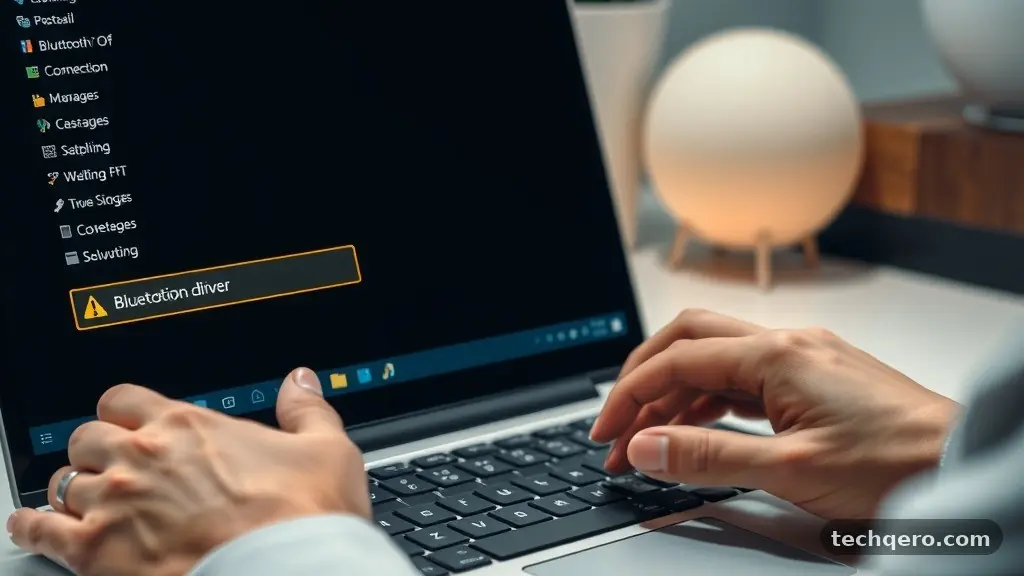
To check the status of your drivers, right-click the Start button and select Device Manager from the list. Expand the Bluetooth section, right-click your adapter—often named after manufacturers like Intel or Realtek—and select Update driver.
If updating doesn’t work, you might need to perform a clean installation. Right-click the adapter again and select Uninstall device, then restart your PC.
Windows will automatically attempt to reinstall the necessary software upon rebooting, effectively clearing out any corrupted configurations that were blocking your connection. You can find more detailed information on managing these system components through the official Microsoft hardware driver documentation.
Managing Device Pairing and Discovery
Sometimes the issue isn’t with the computer, but with the way a specific peripheral is being recognized. If you are having trouble connecting a specific mouse or set of headphones, remove the device entirely from your settings menu.
Go to Settings, Bluetooth & devices, and find the item in your list of paired equipment. Click the three dots next to the entry and select Remove device.
Once the device is removed, put your peripheral back into its official pairing mode. Most devices have a dedicated button or a specific sequence of actions, such as holding the power button for five seconds until a light flashes.
After the device is in pairing mode, go back to your computer and select Add device to start the handshake process fresh. This clears out old security tokens that might be preventing a successful handshake between the hardware and the OS.
Comparing Common Bluetooth Troubleshooting Methods
Not all fixes are created equal, and some are significantly more likely to resolve your issue than others. The following table provides a quick look at the effectiveness of different approaches for users experiencing connectivity drops or total failure.
| Method | Difficulty | Likely Success Rate |
|---|---|---|
| Toggling Bluetooth On/Off | Very Low | High for minor glitches |
| Running Windows Troubleshooter | Low | Moderate |
| Uninstalling/Reinstalling Drivers | Medium | High for driver errors |
| Removing and Re-pairing Device | Low | High for specific peripheral issues |
| Checking BIOS/UEFI Settings | High | Low (only for major hardware failures) |
Checking for Interference and Distance
Bluetooth operates on the 2.4 GHz frequency, which is the same band used by many Wi-Fi routers, microwaves, and cordless phones. If your computer is positioned too close to a high-traffic router, you may experience significant signal degradation.
Try moving your computer or the peripheral closer to each other to see if the connection stabilizes. Physical obstructions, such as metal cases or thick wooden desks, can also dampen the signal strength significantly.
If you are using a desktop PC, ensure that the wireless antenna is properly attached to the back of the motherboard or the network card. Many users overlook this, especially if the computer was recently moved or cleaned. Without the external antenna, the range of your Bluetooth signal can drop to just a few inches, making it look like the hardware is broken when it is merely struggling to receive a signal.
The Importance of Windows Updates
Microsoft frequently releases patches that address compatibility issues with specific Bluetooth hardware. If you haven’t updated your system in a while, you might be missing a patch that fixes a known bug with your particular chipset. Go to Settings, select Windows Update, and click Check for updates to ensure you have the latest software installed.
In some cases, optional updates are hidden under Advanced options within the Windows Update menu. Check the Driver updates section specifically, as this is where newer versions of Bluetooth controller software are often located. Installing these optional updates can sometimes provide the missing link needed to get your devices working again, especially after a major version change like moving from Windows 10 to Windows 11.
Verifying Bluetooth Services
Windows relies on specific background services to keep your wireless connections active. If these services are disabled, you won’t be able to connect to any device regardless of your driver status.
Press Win+R, type “services.msc,” and hit Enter to open the Services window. Scroll down until you find the Bluetooth Support Service in the list.
Right-click this service and select Properties. Ensure that the Startup type is set to Manual or Automatic, and check the Service status.
If it is stopped, click Start to initiate it. You should also click the Recovery tab and ensure that the First failure option is set to Restart the Service, which ensures that it stays running even if it crashes in the background.
Frequently Asked Questions
Why did my Bluetooth suddenly disappear from my PC?
This often happens after a major Windows update or a power surge that causes the Bluetooth controller to hang. A full system shutdown—where you hold the power button for 10 seconds—can often force the hardware to reinitialize properly.
Is it possible that my Bluetooth hardware is physically broken?
While software issues are more common, hardware failure is possible. If your Bluetooth adapter does not show up in the Device Manager even under hidden devices, the internal card may have come loose or suffered a failure.
How do I know if my device is in pairing mode?
Most devices indicate pairing mode with a blinking LED light, usually blue or white. Check your manufacturer’s manual, as some devices require you to hold a button for a specific amount of time to become discoverable.
Does airplane mode affect Bluetooth on a PC?
Yes, enabling Airplane mode on Windows typically kills all wireless radios, including Bluetooth. Make sure that Airplane mode is toggled off in your Action Center or Settings menu.
Can I use a USB Bluetooth dongle instead of the internal one?
Absolutely, and this is a great way to bypass a faulty internal adapter. A cheap USB Bluetooth dongle can often replace a broken internal card with minimal configuration required.
Fixing Bluetooth problems on a Windows PC is usually a matter of methodical elimination rather than advanced technical expertise. By ensuring your drivers are current, your pairing settings are fresh, and your background services are running, you can resolve the vast majority of connectivity issues. Remember to verify the physical connection of your antennas if you are using a desktop, as environmental factors are frequently overlooked.
If you have exhausted these steps and still cannot connect, consider testing your peripherals on a different machine to confirm if the issue lies with the device itself or your computer. With a bit of patience, your wireless setup will be back to working order in no time.