How to Stop Unnecessary Apps From Starting With Windows
Learning the process of stoping Unnecessary Apps From Starting With Windows is one of the most effective ways to reclaim your computer’s performance. When too many programs launch the moment you log in, they consume precious system memory and CPU cycles that should be reserved for the tasks you actually want to perform.
By taking control of your boot sequence, you can reduce your boot time significantly and create a more responsive experience. This article will walk you through the specific tools and settings you need to manage your software environment effectively and keep your machine running at its best.
The Fastest Way to Manage Startup Items
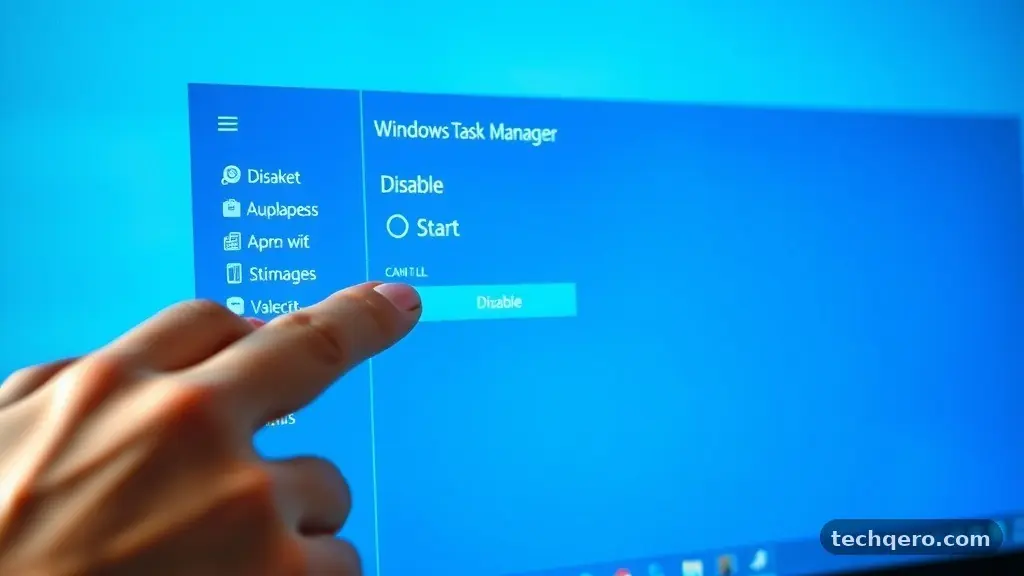
The most direct way to stoping Unnecessary Apps From Starting With Windows is by using the Task Manager. This built-in utility is the primary hub for monitoring system resources and controlling background processes.
To open it, you can simply press Ctrl + Shift + Esc on your keyboard. Once the window appears, look for the tab labeled “Startup” or “Startup apps.”
Inside this tab, you will see a list of every application configured to launch when your system boots. Each entry includes its status, which indicates whether it is currently enabled or disabled.
If you see a program you don’t need running immediately, right-click the entry and select “Disable.” This change takes effect instantly, meaning that the next time you restart your machine, that specific application will stay closed until you manually open it.
Understanding the Impact of Boot Programs
Every application that loads at startup requires a portion of your RAM and CPU to initialize. Over time, as you install more software, your startup list can become bloated with tools you rarely use.
This creates a cumulative drag on your system, often resulting in a sluggish desktop environment after you log in. When you focus on stoping Unnecessary Apps From Starting With Windows, you are essentially freeing up resources that the operating system can then allocate to more critical tasks.
| Impact Category | Typical Effect of Startup Apps | Benefit of Disabling |
|---|---|---|
| Boot Time | Increases wait time significantly | Faster login to desktop |
| RAM Usage | Consumes 50MB to 500MB+ per app | More memory for active work |
| CPU Load | Causes spikes during initialization | Reduced background processing |
Using System Settings for Granular Control
Beyond the Task Manager, Windows provides a dedicated menu within the Settings app to manage these configurations. This interface is often more user-friendly for those who prefer a graphical approach to system management.
To find this, navigate to Settings, select “Apps,” and then click on “Startup.” You will see a list of installed applications along with a toggle switch for each one.
This view is particularly useful because it provides an estimated impact rating for each program. Windows analyzes how much each app affects your startup speed, labeling them as “High impact,” “Medium impact,” or “No impact.”
Prioritize disabling the high-impact items first, as these usually provide the most noticeable performance gains. If you are unsure about a specific process, you can consult official technical documentation to understand what that service does for your operating system.
Identifying What Is Safe to Disable
A common concern when stoping Unnecessary Apps From Starting With Windows is the fear of breaking core system functionality. Generally, you should avoid disabling anything related to hardware drivers, audio controls, or essential security software like Windows Defender. Most third-party applications, such as cloud storage sync clients, game launchers, or update checkers, are perfectly safe to disable.
If you are unsure about a specific entry, search for its name online to see what other users recommend. Many programs have descriptive names, but some use cryptic abbreviations that can be confusing.
If you accidentally disable something you need, simply return to the startup menu and toggle it back to the “Enabled” state. There is very little risk of causing permanent damage by experimenting with these settings.
Advanced Control via the Registry and Services
For power users who want to go deeper, the Services management console offers more control over background processes. Press Win + R, type “services.msc,” and press Enter to open the list of system services.
Many programs install “helper” services that run in the background regardless of whether the main application is open. Double-click a service to change its “Startup type” from “Automatic” to “Manual” if you only want it to run when specifically called upon.
Exercise caution here, as some services are vital for the proper operation of Windows. Always research a service before changing its status to ensure it isn’t required for system stability or network connectivity.
If you find a service that is unnecessary, changing it to “Manual” is a safe way to prevent it from starting automatically. This method is more permanent than the standard startup apps menu and is ideal for cleaning up stubborn background tasks.
The Role of Task Scheduler
Sometimes, applications bypass the standard startup folders and use the Windows Task Scheduler to trigger their launch. This is common for update agents or telemetry services that check for new versions periodically.
To investigate these, type “Task Scheduler” into your search bar and open the program. Navigate to the “Task Scheduler Library” to see a list of all scheduled tasks on your computer.
You can inspect the “Triggers” tab for any task to see what event starts it, such as “At log on” or “At system startup.” If you find a task you don’t need, right-click it and select “Disable.”
This is a highly effective way to stop persistent apps that seem to reappear even after you have disabled them in the Task Manager. Be careful, though, as disabling system-critical tasks can lead to errors.
Optimising Performance for Heavy Users
If you are a professional or a gamer, having a clean startup environment is essential for maintaining consistent frame rates and application stability. A system cluttered with unnecessary background processes can lead to stuttering or slow loading times in resource-intensive software. By regularly auditing your startup items, you ensure your computer is ready for high-performance tasks from the moment you hit the power button.
Consider creating a recurring habit of checking your startup list once a month. New software often adds itself to the startup sequence during installation without explicitly asking for permission.
When you stay on top of this, you prevent the gradual degradation of your PC’s speed. Keeping your startup environment lean is one of the most effective habits for any Windows user.
Common Indicators of Startup Bloat
How do you know when it is time to perform a cleanup? Watch for these common signs:
- Your computer takes more than 60 seconds to reach a usable desktop state.
- Your disk usage remains high for several minutes after you log in.
- Applications take an unusually long time to open for the first time.
- Your mouse cursor hangs or freezes during the initial boot phase.
- You notice numerous system tray icons appearing one by one long after the desktop appears.
If you experience these issues, it is a clear sign that you have too many applications competing for resources at startup. By systematically applying the steps mentioned above, you can resolve these bottlenecks. A clean boot environment not only saves time but also extends the life of your hardware by reducing unnecessary thermal load and disk activity.
Frequently Asked Questions
Does disabling a startup app uninstall the program?
No, disabling an app at startup does not remove it from your computer. It simply prevents that specific program from launching automatically when you turn on your PC. You can still open the application manually whenever you need to use it.
Why do some apps keep coming back to startup?
Some software is designed to re-enable itself during updates or through hidden scheduled tasks. If an app keeps appearing in your startup list, check the application’s internal settings to see if there is an “Auto-start” or “Launch on boot” option that you can toggle off.
Is it better to disable or uninstall unused apps?
If you never use an application, it is better to uninstall it entirely to save disk space and reduce the chance of background activity. If you use the app occasionally, disabling it at startup is the best way to keep it ready without sacrificing performance.
How do I know which startup apps are safe to disable?
Most third-party apps like Spotify, Steam, or cloud storage tools are safe to disable. Avoid disabling items related to your antivirus, audio drivers, or chipset software, as these are necessary for your computer to function correctly and stay secure.
Can I use the Command Prompt to manage startup apps?
Yes, advanced users can manage certain aspects of startup items via the Command Prompt, though it is generally more complex than using the Task Manager. Tools like “wmic” or “reg” commands can access startup directories, but these are intended for experienced users comfortable with system administration.
Final Thoughts on Maintaining Your PC
Mastering the art of stoping Unnecessary Apps From Starting With Windows is a straightforward process that pays off in immediate performance gains. By utilizing the Task Manager, the Settings menu, and occasionally the Task Scheduler, you can effectively curate your startup environment to suit your needs. You do not need to be a technical expert to keep your system lean and responsive.
Simply audit your list periodically, remove what you don’t need, and enjoy a faster, more efficient computing experience every time you log in. Taking these small steps today ensures your machine remains a reliable tool for all your daily tasks.