How to Convert Images to PDF Without Installing Complicated Software
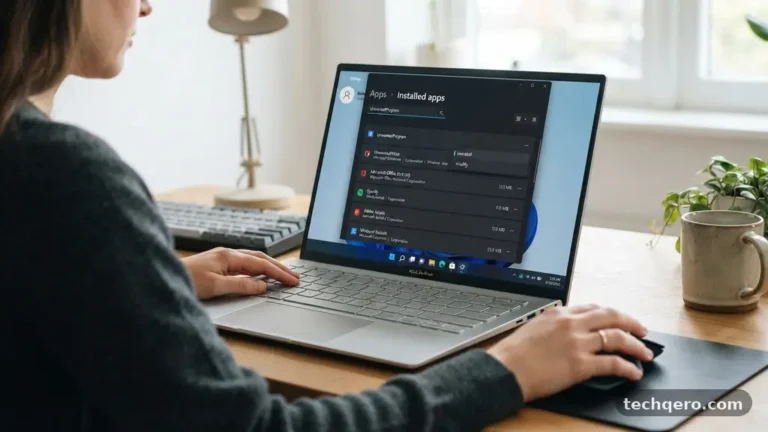
When you need to share documents or store receipts, knowing how to handle file formats is essential. Many people struggle with the common task of converting Images to PDF Without Installing Complicated Software, often assuming they need expensive, heavy-duty programs. In reality, modern operating systems and web browsers provide everything you need to get the job done in seconds.
By using tools already built into your computer or mobile device, you can save time, avoid unnecessary clutter, and keep your system running smoothly. You will gain a clear understanding of how to manage your digital files effectively and efficiently, without ever needing to download extra bloatware.
The Built-in Windows Print Method
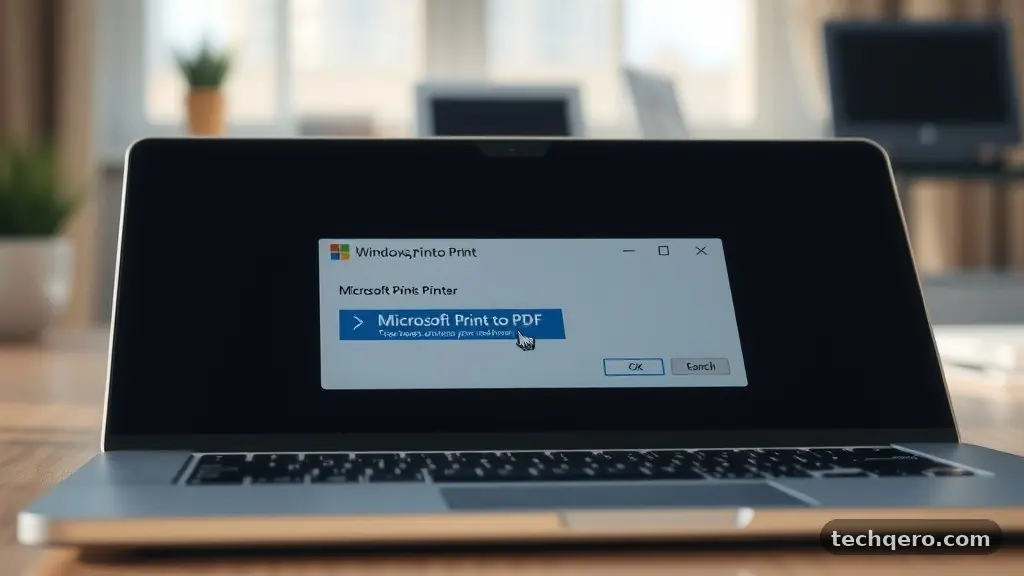
You likely already have a powerful tool on your computer that handles file conversion effortlessly. Windows includes a “Microsoft Print to PDF” feature that acts as a virtual printer for any application. This is arguably the most reliable way to create a PDF file because it doesn’t require an internet connection or external software.
To use this, open your image file in the default Photos app or any image viewer you prefer. Select the print option, usually found under the file menu or by pressing Control and P on your keyboard. Instead of choosing a physical printer from the list, select “Microsoft Print to PDF” as your device.
Once you click print, the system will prompt you to save your new file to a folder of your choice. This process effectively flattens your image into a standard document format that is easy to email or upload. It works for almost any image file type, including JPG and PNG, ensuring your photos are portable and professional.
Using macOS Preview for Quick Conversions
Apple users have an even simpler experience thanks to the Preview app. Preview is a versatile, lightweight utility that comes pre-installed on every Mac. It handles images and documents with ease, making the conversion process incredibly intuitive.
Open your image file in Preview by double-clicking it. Navigate to the “File” menu at the top of your screen and select “Export as PDF.” You can then choose where to save the file and rename it if necessary.
This method is highly efficient because it allows you to combine multiple images into a single PDF document. Simply open all the images you want to include, drag them into the sidebar of the Preview window, and rearrange them as you like. When you save the file, all those separate images become pages within one cohesive document.
Web-Based Conversion Tools
If you are working on a device where you cannot access system settings, browser-based tools are a great alternative. These services allow you to convert images to PDF without installing complicated software by processing the files on their own servers. You simply upload your image, and the site generates a download link for your new PDF.
When choosing a web tool, prioritize those that emphasize user privacy and file deletion policies. Many reputable sites will automatically wipe your data from their servers after a few hours, protecting your sensitive information. This is an ideal solution if you are on a public computer or a workplace device that restricts software installations.
Always ensure you are using a secure connection when uploading personal documents to any cloud service. Look for the padlock icon in your browser’s address bar, which indicates that your data is encrypted during transit. While these tools are convenient, they should be used with common sense regarding the sensitivity of the files you are uploading.
Managing Files on Mobile Devices
Smartphones are often where we store our most important photos, like receipts or identification documents. Both iOS and Android have native features that make converting these photos into PDF documents a breeze. You do not need to download third-party apps from the store to achieve this.
On an iPhone or iPad, open the Photos app and select the image you want to convert. Tap the share icon—the square with an upward arrow—and then select “Print.” Even if you aren’t connected to a printer, you can pinch outward on the image preview to expand it, which creates a PDF version of the file.
Android users can achieve similar results through the Google Photos app. Select your image, tap the three-dot menu icon, and choose “Print.” From the printer selection dropdown, choose “Save as PDF” to generate the file on your device’s internal storage.
Comparing Conversion Methods
Different situations call for different approaches, and understanding the trade-offs helps you choose the right path. While system-level tools are the most secure, web tools offer the most flexibility across different operating systems. Below is a comparison to help you decide which method fits your current needs.
| Method | Best For | Internet Required | Privacy Level |
|---|---|---|---|
| Windows Print | Desktop users | No | High |
| macOS Preview | Mac users | No | High |
| Web Converters | Cross-platform | Yes | Variable |
| Mobile Native | On-the-go tasks | No | High |
Organizing Your New PDF Files
Once you successfully convert your images, it is important to keep your digital workspace tidy. A PDF file is often easier to manage than a scattered collection of JPG or PNG files. Create a specific folder for your converted documents so you can find them later without searching through your entire photo library.
Naming your files consistently is another key habit for effective document management. Use a format that includes the date and a brief description, such as “2023-10-27_Invoice_Store.pdf.” This small step prevents the common issue of having dozens of files named “Image1,” “Image2,” and so on.
Consider using cloud storage services like Google Drive or iCloud to back up your converted documents. Having your files synced across devices ensures that you can access your important information from anywhere. You can find more information about managing digital assets through the official National Archives records management resources for best practices on file organization.
Common Challenges and Solutions
Sometimes you might run into issues where the file size of your PDF is too large for an email attachment. This typically happens if the original image was high-resolution. You can often reduce the size by adjusting the quality settings in the print dialogue box before saving the file.
Another challenge is orientation; occasionally, an image might appear sideways in the resulting PDF. Always check the print preview screen before confirming the save action. Most native tools allow you to rotate the image within the preview window to ensure the final document is perfectly aligned.
If you find that your images are blurry, ensure you are using the original file rather than a low-resolution thumbnail. Browsers and system viewers usually default to the highest quality available, but it is worth checking your source material. High-quality inputs will always yield a much cleaner, more legible PDF document.
Frequently Asked Questions
Is there a limit to how many images I can convert at once?
Most native operating system tools allow you to select multiple files at once. You can highlight several photos in your folder, right-click, and select print to combine them into a single PDF document.
Do I lose image quality when converting to PDF?
Generally, no. When you use the “Print to PDF” function, the system renders the image data directly into the document format. As long as you don’t compress the file excessively, the quality remains identical to the original image.
Can I edit a PDF after I create it?
Most basic conversion methods create a static document. If you need to edit the text or layout later, you may need a specialized PDF editor, but for simply saving and sharing, the static file is usually sufficient.
Are web-based converters safe for sensitive documents?
While many reputable converters have strict privacy policies, it is safer to use your computer’s built-in tools for sensitive items like tax documents or medical records. Native tools keep your data entirely on your local machine.
Why does my PDF look different from the original photo?
This usually happens due to page size settings. If your image is very wide but your print settings are set to standard letter size, the image might be scaled down or cropped. Check your printer settings to ensure the “fit to page” or “scale to fill” option is selected.
Conclusion
Mastering the process of converting Images to PDF Without Installing Complicated Software is a simple way to streamline your digital life. Whether you are using the built-in print features on Windows, the versatile Preview app on macOS, or the native sharing options on your smartphone, you have all the tools you need right at your fingertips. By avoiding unnecessary downloads, you keep your devices clean, secure, and running at peak performance.
Take a moment to try these methods with a few test files to see which workflow feels most natural for you. Once you become comfortable with these built-in utilities, you will rarely find yourself looking for third-party software again. If you have a favorite trick or a specific scenario you are trying to solve, feel free to experiment with the settings mentioned here to find the perfect balance of quality and file size for your needs.