How to Safely Download Apps and Software From the Internet
Learning how to safely download apps and software from the internet is a fundamental skill for anyone living in our digital age. By sticking to official stores, verifying digital signatures, and using reliable security tools, you can keep your devices free from malicious code. This approach ensures your personal data remains private while you enjoy the latest programs and tools.
Understanding the risks associated with unverified sources allows you to make informed decisions every time you click a download button. You will gain the confidence to explore new software without compromising your computer’s health or your own digital security.
The Safest Sources for New Software
The most secure way to obtain programs is by using the official digital storefronts built into your operating system. For Windows users, the Microsoft Store serves as a vetted hub for applications that have undergone security checks.
Similarly, macOS users should rely on the Mac App Store to ensure that the content they install is legitimate. These platforms perform automated scans to identify common threats before the software is ever made available to the public.
When you cannot use an official store, always head directly to the developer’s primary website. Avoid third-party download portals that bundle extra, unwanted programs or “download managers” with the file you actually requested.
These intermediaries often earn commissions by installing adware on your system without your explicit permission. Verifying the URL in your browser address bar is a simple way to ensure you are dealing with the real creator.
Check the website’s reputation if you are unsure about its authenticity. Look for contact information, a physical address, and a clear privacy policy page.
If a site looks professional but offers “cracked” versions of paid software, it is almost certainly a distribution point for malware. Trust your instincts; if an offer for free premium software seems too good to be true, it is.
Verifying File Authenticity
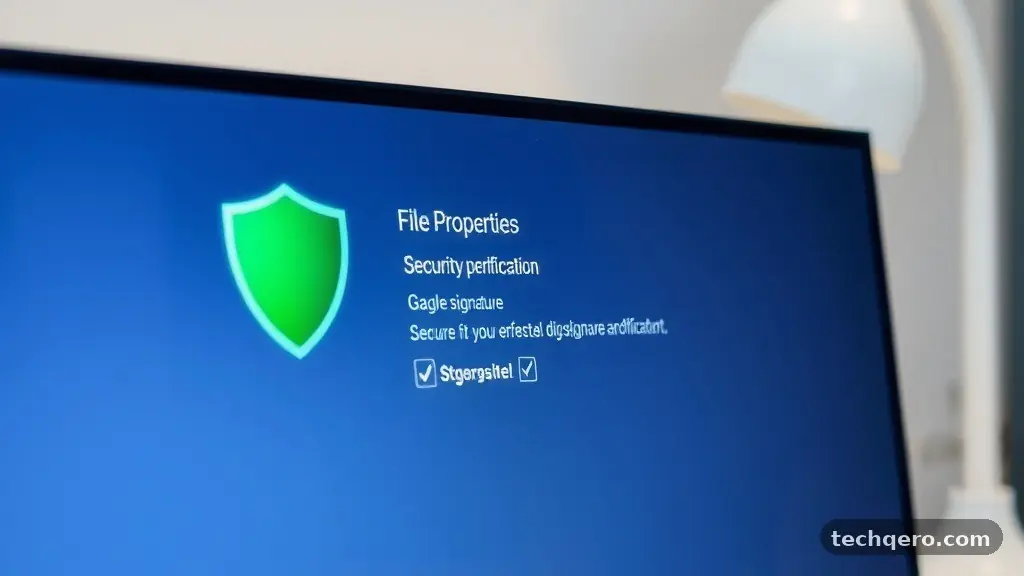
Even when you download from a legitimate site, it pays to be vigilant. Modern operating systems use digital signatures to confirm that a file has not been tampered with since the developer signed it.
When you attempt to run an installer, your system might display a warning box identifying the verified publisher. If that box says “Unknown Publisher,” you should stop the installation immediately.
Another powerful method for checking suspicious files is using a service like VirusTotal. This tool allows you to upload a file or paste a link to scan it against dozens of different antivirus engines simultaneously.
It provides a quick, visual report that highlights whether any security vendor has flagged the file as dangerous. It is a fantastic way to gain a second opinion before you commit to installing a new program.
Keep in mind that these tools are not infallible. A clean report from a scanner does not guarantee that a program is benign, especially if it was released only a few hours ago.
Use these services as a layer of defense rather than a total guarantee of safety. Always combine this check with your own assessment of the source’s credibility.
Security Best Practices During Installation
The process of safely downloading apps and software from the internet continues long after the file hits your hard drive. During the installation process, pay close attention to every screen that appears.
Many free programs try to slip in “optional” components, such as browser toolbars or search engine modifiers. These extras are often unnecessary and can slow down your machine or track your browsing activity.
Always select the “Custom” or “Advanced” installation mode if it is available. This choice frequently reveals hidden checkboxes that allow you to opt out of bundled software.
If you find yourself clicking “Next” repeatedly without reading the text, you are likely agreeing to things you do not want. Take a moment to scan the fine print for any mention of third-party tools.
Ensure your real-time protection is active before you start any installation. Modern operating systems include built-in security suites that are highly effective at blocking known malicious behavior.
If your security software triggers an alert during the download or setup phase, do not override it. It is much easier to find an alternative program than it is to clean an infected operating system.
Comparing Download Methods
Understanding the differences between various sources helps clarify why some are safer than others. The table below outlines the risk levels associated with common ways to acquire new software.
| Source Type | Risk Level | Security Features |
|---|---|---|
| Official App Stores | Very Low | Vetted by platform, auto-updates, sandboxed. |
| Developer Websites | Low | Direct control, digital signatures, no bloatware. |
| Software Repositories | Moderate | Community-driven, varying levels of moderation. |
| Third-Party Aggregators | High | Bundled installers, adware, potential malware. |
| P2P/Torrent Sites | Very High | Unregulated, high probability of malicious code. |
Managing Updates and Permissions
Security does not stop once a program is installed on your computer. Developers frequently release updates to patch vulnerabilities that hackers might exploit to gain access to your data.
Enable automatic updates whenever the software offers that feature. If a program does not support automatic updates, make it a habit to check the developer’s site once a month for newer versions.
Be mindful of the permissions you grant to the apps you install. A simple calculator app does not need access to your webcam, microphone, or contacts list.
If an app requests sensitive permissions that seem irrelevant to its core function, deny the request. Operating systems have become much better at letting you toggle these permissions on or off after the fact.
Review your installed apps periodically to see if there is anything you no longer use. Unused programs are just another potential entry point for security risks.
Uninstalling software you don’t need reduces your attack surface and helps keep your system running smoothly. It is a simple housekeeping task that pays dividends for your digital hygiene.
Common Indicators of Malicious Files
Recognizing the warning signs of a dangerous download can save you from a major headache. Be suspicious of files that use misleading names, such as “Installer_Setup_Free.exe” when you were expecting a specific document or utility.
File extensions are also a major clue; a legitimate image file will never be an executable program. If you see a file ending in .exe, .scr, or .bat that you were not expecting, delete it immediately.
Unexpected pop-ups that claim your computer is infected are a classic tactic used by bad actors. These messages often appear immediately after you visit a suspicious site or click a questionable link.
They are designed to scare you into downloading “security” software that is actually a virus. Never click on these pop-ups; close the tab or the entire browser window instead.
Look for poor grammar and design on the websites where you find your software. While some professional-looking sites are dangerous, many malicious ones are hastily thrown together with broken links and misspelled text.
If a site asks you to disable your antivirus software to finish the installation, leave the site immediately. No legitimate software developer will ever ask you to turn off your security protections.
Essential Tools for Digital Safety
You do not need to be a cybersecurity expert to keep your devices safe. A few basic tools can handle most of the heavy lifting for you.
Start with a solid, reputable antivirus program that runs in the background. Most users are perfectly served by the built-in protections provided by Windows or macOS, provided they stay up to date.
Consider using a password manager to keep your credentials secure. If you accidentally download a malicious program that logs your keystrokes, a password manager prevents the thief from getting your actual passwords.
They also help you generate unique, complex passwords for every single site you visit. This limits the damage if one of your accounts is ever compromised.
Keep your browser updated as well. Browsers are the primary gateway to the internet and receive frequent security patches to block new threats.
Extensions can also help, such as ad-blockers that prevent malicious scripts from running when you visit a site. Use these tools to build a layered defense that protects you from common online pitfalls.
Helpful Habits for Every User
Building a routine for safely downloading apps and software from the internet is the best way to stay protected long-term. Start by creating a dedicated folder for your downloads.
This keeps your desktop clean and allows you to scan the folder with your antivirus software as a batch. Never run a file directly from your browser; always save it first and scan it.
Backing up your data is your final line of defense. If a malicious file does manage to slip past your defenses and encrypt or delete your files, a recent backup saves you from catastrophe.
Use an external hard drive or a secure cloud service to keep copies of your important documents, photos, and projects. Aim for the “3-2-1” rule: three copies of your data, on two different media, with one copy kept off-site.
Educate yourself on the latest threats by following tech news outlets. You don’t need to read deep technical journals, but keeping up with major security trends helps you stay aware of new scams.
When you hear about a widespread vulnerability, check your own devices to ensure you have installed the necessary patches. Staying informed is the most effective way to prevent future problems.
Frequently Asked Questions
What is the most effective way to check if a download is safe?
The most effective approach is to ensure you are downloading from the official developer’s website. If you are still concerned, you can upload the installer file to a site like VirusTotal to scan it against multiple antivirus engines at once.
Can I trust files from social media or email attachments?
You should be extremely cautious with any file received through social media or email, even if it appears to come from a friend. Hackers frequently compromise accounts to spread malware to contacts. Only open files you were actively expecting to receive.
What should I do if I accidentally run a suspicious file?
Disconnect your computer from the internet immediately to prevent the malware from communicating with external servers. Run a full system scan using your antivirus software, and if you are still worried, consider restoring your system to a previous state or seeking professional help.
Are free software programs always dangerous?
No, many free programs are perfectly safe and legitimate. Open-source software, in particular, is often highly secure because the code is available for anyone to review. The risk comes from the source of the download, not the fact that the software is free.
How do I know if my antivirus is actually working?
Most modern antivirus software has a dashboard that shows your current protection status. You can also perform a “test” by using the EICAR test file, which is a harmless industry-standard file designed to trigger an antivirus alert to confirm it is functioning correctly.
Closing Thoughts
Safely downloading apps and software from the internet is a habit built on consistency rather than complex technical knowledge. By choosing official sources, verifying your files, and keeping your systems updated, you build a strong defense against common digital threats. These simple precautions protect your identity, your data, and your hardware from those who would exploit them.
You are now equipped with the tools and the mindset needed to browse and install with confidence. Remember to stay curious, keep your software current, and always double-check the source before you click save.
If you ever feel unsure about a specific file, it is always better to skip it and find a more reliable alternative. Enjoy the vast library of tools available online, and stay secure while you explore.