How to Check Your Internet Speed on a Windows PC
Checking your internet speed on a Windows PC is the most reliable way to determine if your connection is performing as promised by your service provider. Whether you are troubleshooting lag during a video call or simply curious about your bandwidth, running a quick diagnostic provides instant clarity on your network health.
By learning how to check your internet speed on a Windows PC, you can identify whether your hardware, your router, or your ISP is responsible for any connectivity issues. This process takes less than a minute and requires no special technical knowledge to interpret the results effectively.
Using Browser-Based Speed Tests
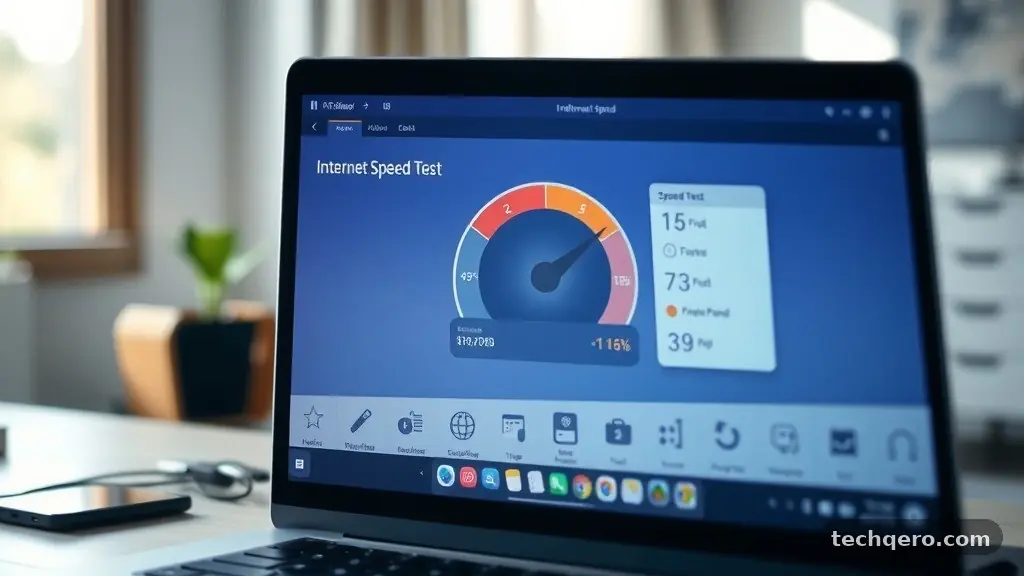
The fastest method to evaluate your network performance is through a web browser. You do not need to install any software, as modern browsers handle these diagnostic scripts effortlessly. Simply navigate to a reputable testing site and click the “Go” or “Start” button to begin the measurement.
These services work by downloading a small file and then uploading one back to a nearby server. This mimics your actual usage, such as streaming video or sending emails, to provide a realistic view of your throughput. Most platforms will automatically detect your location and connect you to the closest testing node to ensure the most accurate data.
When you perform this test, you are typically measuring three distinct metrics. The first is your download speed, which reflects how fast you pull data from the web.
The second is your upload speed, essential for tasks like video conferencing or backing up files. Finally, you will see your latency, often called ping, which measures the delay in your connection.
Understanding Your Results
Once the test completes, you will be presented with a few key numbers that might seem confusing at first. Download speed is measured in Megabits per second (Mbps), which is different from Megabytes per second (MBps). If you are paying for 300 Mbps, you should ideally see results somewhere in that range, though minor fluctuations are normal.
Latency is measured in milliseconds (ms), and lower is always better here. A ping under 20ms is considered excellent for gaming and real-time tasks, while anything over 100ms can lead to noticeable lag. If your results are significantly lower than what your internet plan promises, you should consider restarting your router or checking your physical connections.
Factors that influence these numbers include the number of devices currently using your network and the distance between your computer and the router. If you are on a Wi-Fi connection, signal interference from walls or other electronics can also degrade your performance. Always aim to run your test while no other heavy bandwidth tasks are running in the background.
Comparing Connection Types
The hardware you use to connect to the internet significantly impacts your results. A wired Ethernet connection is almost always faster and more stable than a wireless one. If you want to know the true capacity of your service, plugging your computer directly into the router is the best way to eliminate external variables.
| Connection Type | Reliability | Typical Latency |
|---|---|---|
| Ethernet (Wired) | High | Low (5-15ms) |
| Wi-Fi 6 (802.11ax) | Moderate | Medium (15-40ms) |
| Wi-Fi 5 (802.11ac) | Variable | High (30-80ms) |
As shown in the table above, the connection medium changes the outcome significantly. While Wi-Fi is convenient for mobile devices, it is susceptible to radio frequency interference. If you find your speeds are consistently poor, switching to a wired connection is often the most cost-effective solution to improve your experience.
The Role of Network Hardware
Your router acts as the gateway for all the data traveling to your computer. If your router is outdated, it may not be able to handle the high-speed tiers offered by modern providers. Firmware updates are essential for keeping this hardware running at its peak efficiency.
Many manufacturers release software patches that improve how your router manages traffic. You can usually check for these updates by logging into your router’s administrative panel through a web browser. Look for a “System” or “Advanced” tab, where you can check for the latest version of the firmware.
Additionally, the physical placement of your router matters. Placing it in an open, central area of your home prevents the signal from being blocked by dense materials like concrete or metal. If your home is large, you might need a mesh system to ensure that your Windows PC receives a strong signal in every room.
Troubleshooting Slow Connections
If you discover that your internet is slower than expected, start by power-cycling your modem and router. Unplug both devices from the power outlet and wait for at least 30 seconds before plugging them back in. This simple step clears the device memory and often resolves temporary glitches that throttle your throughput.
Next, check your computer for background processes that might be consuming bandwidth. Windows often performs automatic updates or cloud sync operations that can hog your connection without you realizing it. You can see these in the Task Manager by pressing Ctrl + Shift + Esc and looking at the “Network” column.
* Close bandwidth-heavy applications like streaming services or game launchers.
* Disconnect other devices like tablets or smart TVs from your network.
* Disable VPN software, as these can significantly reduce your speed due to encryption overhead.
* Check for malware that might be using your connection for unauthorized activities.
When to Contact Your ISP
Sometimes, the issue is not within your home but with the infrastructure provided by your ISP. After you have ruled out router issues and local interference, it is time to contact their technical support team. Provide them with the specific numbers you recorded during your speed test.
Be prepared to explain the steps you have already taken to troubleshoot the connection. This shows the agent that you have performed your due diligence and helps them skip the basic “restart your router” script. They can perform a line test from their end to check for outages or signal degradation in your neighborhood.
If the problem persists, they may need to send a technician to inspect the external wiring or replace the modem. Keep a record of your testing results over several days at different times. This data is invaluable if you need to prove that your connection is failing to meet the terms of your service agreement.
Optimizing Windows for Better Performance
Windows includes several settings that can either help or hinder your network performance. For example, “Delivery Optimization” is a feature that allows your PC to share downloaded updates with other computers on your network or the internet. While helpful for Microsoft, it can consume your upload bandwidth and affect your overall speed.
You can adjust this by navigating to Settings, selecting Windows Update, and clicking Advanced options. Under Delivery Optimization, you can turn off the ability to download from other PCs. This ensures that your bandwidth is reserved exclusively for your own tasks.
Furthermore, ensure your network drivers are up to date. You can find these in the Device Manager under “Network adapters.”
Right-click your adapter and select “Update driver” to let Windows search for the latest version. Keeping these drivers current ensures that your hardware is communicating as efficiently as possible with your operating system.
Frequently Asked Questions
Is there a built-in speed test in Windows?
Windows does not have a native, user-facing speed test application in the same way it has a clock or calculator. You must use a web browser to visit a testing site or install a third-party application from the Microsoft Store. These web-based tools are generally more accurate because they are updated frequently to keep up with modern browser standards.
What constitutes a good internet speed?
A “good” speed depends entirely on your specific needs. For casual web browsing and email, 25 Mbps is sufficient for a single user. If you are streaming 4K video or gaming, you should aim for at least 100 Mbps. For households with multiple people using several devices simultaneously, a plan providing 300 Mbps or higher is recommended to prevent bottlenecks.
Why does my Wi-Fi speed vary so much?
Wi-Fi signals are sensitive to distance, physical obstacles, and even other household electronics like microwaves or cordless phones. These devices operate on similar frequencies, which can cause interference and lead to fluctuations in your connection quality. Moving your computer closer to the router or switching to a 5GHz band can often resolve these issues.
Does using a VPN slow down my connection?
Yes, using a Virtual Private Network almost always reduces your speed. This happens because your data must be encrypted before it leaves your computer and then decrypted at the VPN server. This overhead, combined with the extra distance your data travels to reach the VPN node, naturally adds latency and lowers your throughput.
Can I test my speed using the Command Prompt?
Advanced users can use command-line tools to check their network performance, though it is more complex than a browser test. Tools like iPerf or simple ping commands can help diagnose connectivity issues between your PC and a specific server. For most users, however, a standard web-based test remains the most reliable way to gauge general performance.
Conclusion
Taking the time to measure your connection gives you the power to hold your service provider accountable and optimize your home setup. By knowing how to check your internet speed on a Windows PC, you gain a clearer picture of whether your hardware is hitting its potential or if something is holding you back. Remember that consistent testing across different times of the day is the best way to spot patterns in your performance.
For more technical details on how network protocols function, you can refer to the Federal Communications Commission’s guide on measuring broadband. Keep your drivers updated, manage your background applications, and enjoy a more stable online experience. Feel free to run a test now and see how your current connection stacks up.